How to write a before-and-after UI redesign brief
Preserve the content that matters, choose a clear task, and compare a redesign without mistaking a cleaner screenshot for a better workflow.
In this article
A before-and-after UI study becomes useful when the two screens answer the same question. If one version has fewer rows, shorter names or a different task, a cleaner picture may simply show less work. A redesign brief should say what stays, what can change and how a reviewer can compare the result. The visual direction comes after those decisions.
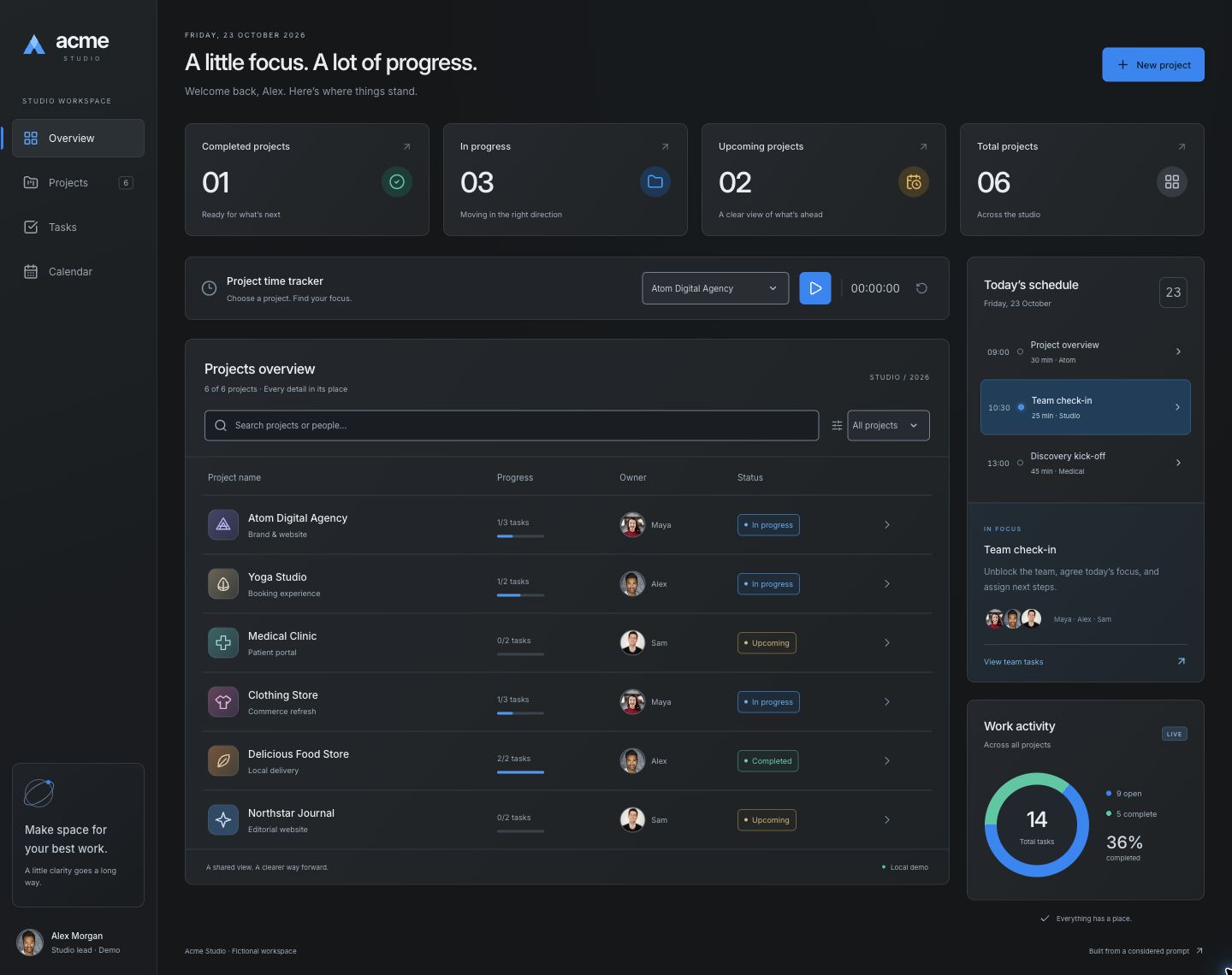
Our Acme Studio study provides a concrete starting point: two layouts for the same six fictional projects and fourteen tasks. The comparison page pairs the captures with a reusable redesign brief and a link to the working refined dashboard. Use those materials to inspect the choices, then replace the sample context with your own product and its requirements.
Choose one task to guide the redesign
Describe the reader and the decision they need to make. For a studio lead, that might be understanding project health and choosing the next task. This gives the brief a reason to emphasize ownership, lifecycle status and progress. “Make the dashboard modern” offers visual direction but leaves the actual priority unresolved.
Write a short acceptance sequence before changing the screen. Ask a reviewer to find a named project, identify its owner, open its details and return to the list. If the product supports editing, include one edit that affects a summary or filter. The same sequence should still be possible after the redesign, with the important information available at each step.
Preserve records, actions and meaning
List the content that must survive: project names, people, status values, task counts, navigation destinations and meaningful actions. Supply readable data where the screenshot is ambiguous. A tool should not invent a more attractive percentage or replace a difficult long name with a short placeholder just to improve the composition.
Keep different kinds of status distinct. A project can be in progress while some tasks are already complete. A summary should follow the records rather than a decorative label. In the Acme example, project lifecycle and completed-task progress communicate different things. Preserving that distinction gives the reviewer something more reliable to check than the appearance of a progress bar.
Name the structural change you want
Describe a few relationships instead of prescribing every pixel. The main work should receive more space than supporting context. Comparable project values should align. A category can sit beneath a project name while owner and status remain easy to locate. These requirements explain why a layout changes and make the result easier to discuss.
Also name the boundaries. Keep the existing brand, labels and supported actions when those are part of the product. If portraits or project marks are needed, supply assets you can use and preserve consistent identities. Do not let decorative replacement content hide missing information. A compact layout should still contain the records and controls the task requires.
Compare equivalent states at matching sizes
Capture the starting and refined views at the same viewport size with the same records and filter state. Include enough of the application to understand navigation and supporting panels. A cropped after image can conceal a displaced action or content pushed below the fold, so review the complete screen as well as any close-up.
Then repeat the comparison with a filtered list, no matching results and an edited record. On a phone, the desktop columns may become stacked cards and the schedule may move below the projects. Check whether the original task and labels remain available. A different arrangement is reasonable; losing a required action is a separate problem to resolve.
Record what changed and what still needs checking
Close the brief with a short explanation of the structural choices: which area became primary, how supporting information moved and what was preserved. Record assumptions, manual corrections and incomplete behaviour. That account helps another designer adapt the process without assuming that one prompt will recreate the same implementation in every tool.
A before-and-after image documents a proposal. It does not establish faster task completion or improved usability on its own. Use the linked working dashboard to inspect local interactions, then plan the checks your actual product needs. The useful handoff contains both the visual comparison and a repeatable task, with the original content and operational boundaries still visible.
Original editorial by UI Prompts, written with AI assistance from documented project work. References are credited separately. These articles do not claim measured usability improvements or consistent regeneration across tools.