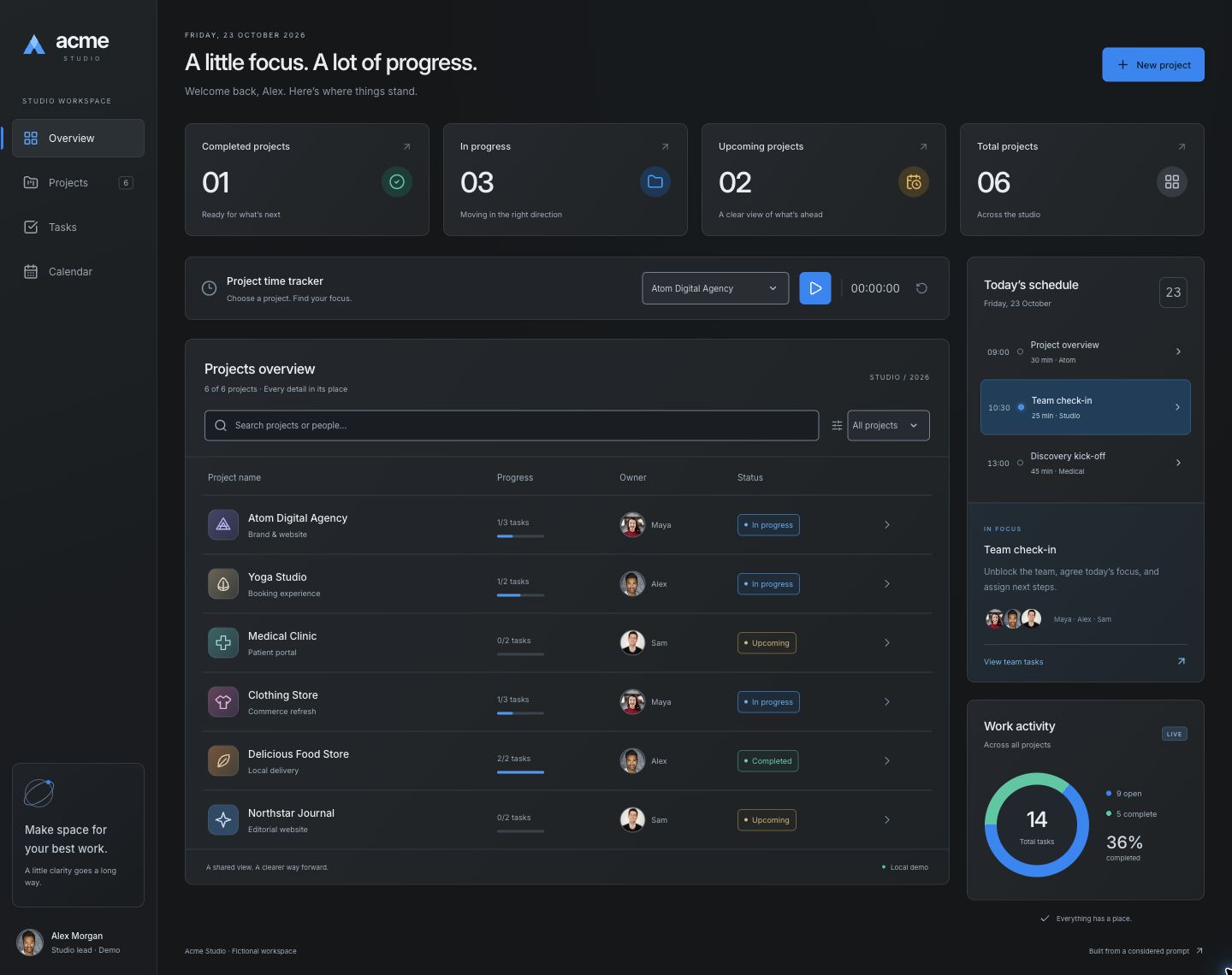
Attach your dashboard screenshot and use the full brief to guide its redesign.
Redesign the project-management dashboard in my attached screenshot into a clear, professional workspace for a studio lead. The result should make project health, ownership and the next useful action easier to scan. Make a meaningful change to the information hierarchy and layout, rather than simply changing colors or adding rounded cards. Deliver a working responsive interface if code is supported; otherwise provide a complete visual design with its interaction states.
INPUTS AND CONTENT
Use my screenshot as the source of product content. Preserve the project names, people, categories, status values, task counts, navigation destinations and existing actions. Do not replace my content with Acme Studio or invent better-looking metrics. If a number or label is unreadable, ask for it or mark it as an assumption. If I also supply an after reference, use it for visual direction without copying its branding or data. The written requirements below define the target when no after image is supplied.
VISUAL DIRECTION
Create a considered dark workspace using Inter or a comparable neutral sans-serif. Use charcoal #151719 for the application canvas, #1e2124 for panels, subtle #303439 borders, near-white headings and readable muted blue-grey secondary text. Use blue #0088f6 for the primary action, selected navigation and progress; reserve teal and amber for meaningful completed/upcoming states with text labels. Keep surfaces mostly solid, with restrained radii and shadows. Avoid large decorative gradients, glass effects, oversized marketing headings and arbitrary colorful metric cards.
DESKTOP COMPOSITION
Replace a spread-out, table-heavy overview with a clear application frame. Use an approximately 184px left navigation rail with an original workspace identity, labelled destinations and the signed-in person's portrait at the bottom. Give the main area about 32px of horizontal padding. Start with a readable 27px heading, a short contextual sentence and one New project action aligned to the right. Keep the heading visually stronger than panel titles.
Below the heading, align four compact, equally sized summary cards. Use a prominent value, a concise metric label and a quiet supporting note. Keep their surfaces consistent; use small semantic icon accents instead of four competing background colors. Derive values from the supplied records.
Use roughly three quarters of the remaining width for the primary work and one quarter for supporting information, with about 20px between columns. Put a compact single-row time tracker above the main projects panel. It contains a project selector, start/pause action, elapsed HH:MM:SS and reset. Put today's schedule and work activity beside the projects, so they remain visible without pushing the actual work below a long page of summaries. Keep dropdown chevrons about 12px inside the right edge and reserve enough trailing text padding to prevent overlap.
PROJECT LIST AND PEOPLE
Give the project list a panel heading, search and status filter, followed by aligned Project, Progress, Owner and Status columns and a quiet row-open action. Put the category under the project name instead of giving every secondary fact equal visual weight. Use comfortable row spacing, fine separators and short progress bars with readable completed/total task labels. Show lifecycle status separately from task completion. Do not hide essential project information simply to make the screenshot cleaner.
Use actual portrait photographs for named people, with a consistent circular crop, good focal positioning and a visible name beside the image. Use the same photograph for the same person everywhere: owner cells, workspace profile and meeting participants. Do not use initials circles, abstract blobs or emoji as the finished people avatars. Use supplied or appropriately licensed portraits; if they are missing, request the assets before the final visual pass. Treat stock models as fictional interface identities, never as endorsements or testimonials.
For client/project tiles, use supplied client marks or draw distinct original geometric symbols relevant to the fictional projects. These are company/project identities, not people avatars. Do not import real company logos or add unrelated photographs merely for decoration.
SUPPORTING PANELS
Show schedule entries with time, event name and duration. A selected entry reveals its short description and participant portraits. Keep these panels quieter than the projects list. Show activity using task totals, open/completed labels and a restrained chart derived from those totals. Do not invent growth arrows, historical trends or performance claims.
BEHAVIOR AND STATES
Preserve the existing actions from the input. Search and status filtering work together; show a useful no-results state with a clear recovery action. Opening a project exposes its details without losing filters when closed. Owner/status changes and task completion update the relevant list, summary and activity views together. Retain any existing project-creation, task and timer flows; distinguish local demonstration behavior from connected services. A running timer prevents accidental project switching. Provide pending, error and recovery states only for actions that actually need them. Do not add decorative controls without behavior.
PHONE LAYOUT AND ACCESSIBILITY
At 390px, replace the desktop rail with compact labelled navigation, arrange summary cards in two columns and convert project rows to readable stacked cards. Put the schedule and activity below the projects. Keep the portrait/name relationship, filters and actions available without horizontal page overflow. Use semantic headings, labelled native controls, visible focus, textual status labels and useful announcements. Dialogs need a title, Escape dismissal, focus containment and restoration. Keep touch actions comfortably sized and respect reduced motion.
REVIEW AND HANDOFF
Compare the original and redesigned screen at matching dimensions. Show the whole application inside a consistent padded, rounded preview without clipping its edges. Check that all supplied projects, people, totals and meaningful actions are still present. Verify initial values against the records and check a filtered, empty and edited state. Explain the few structural changes that matter: stronger heading/metrics, more room for projects, supporting context alongside the work and recognizable people. Report assumptions or unresolved states; do not describe a visual proposal as a proven usability result.
ACME EXAMPLE ASSETS
When using the bundled Acme Studio example, use these local portrait files: /images/patterns/assets/portrait-michael-dam.avif for Maya Chen, /images/patterns/assets/portrait-joseph-gonzalez.avif for Alex Morgan, and /images/patterns/assets/portrait-connected-narrative.jpg for Sam Okafor. Supply those files when building outside this repository. Keep its six projects and fourteen tasks: 1 completed, 3 in progress, 2 upcoming, 6 total projects; 5 completed and 9 open tasks. For another product, preserve that product's content instead.
Scroll to read. Copy includes the full prompt.