How we made a project dashboard easier to scan
The decisions behind Acme Studio: clearer priorities, useful summaries, and a workspace whose numbers reflect the work.
In this article
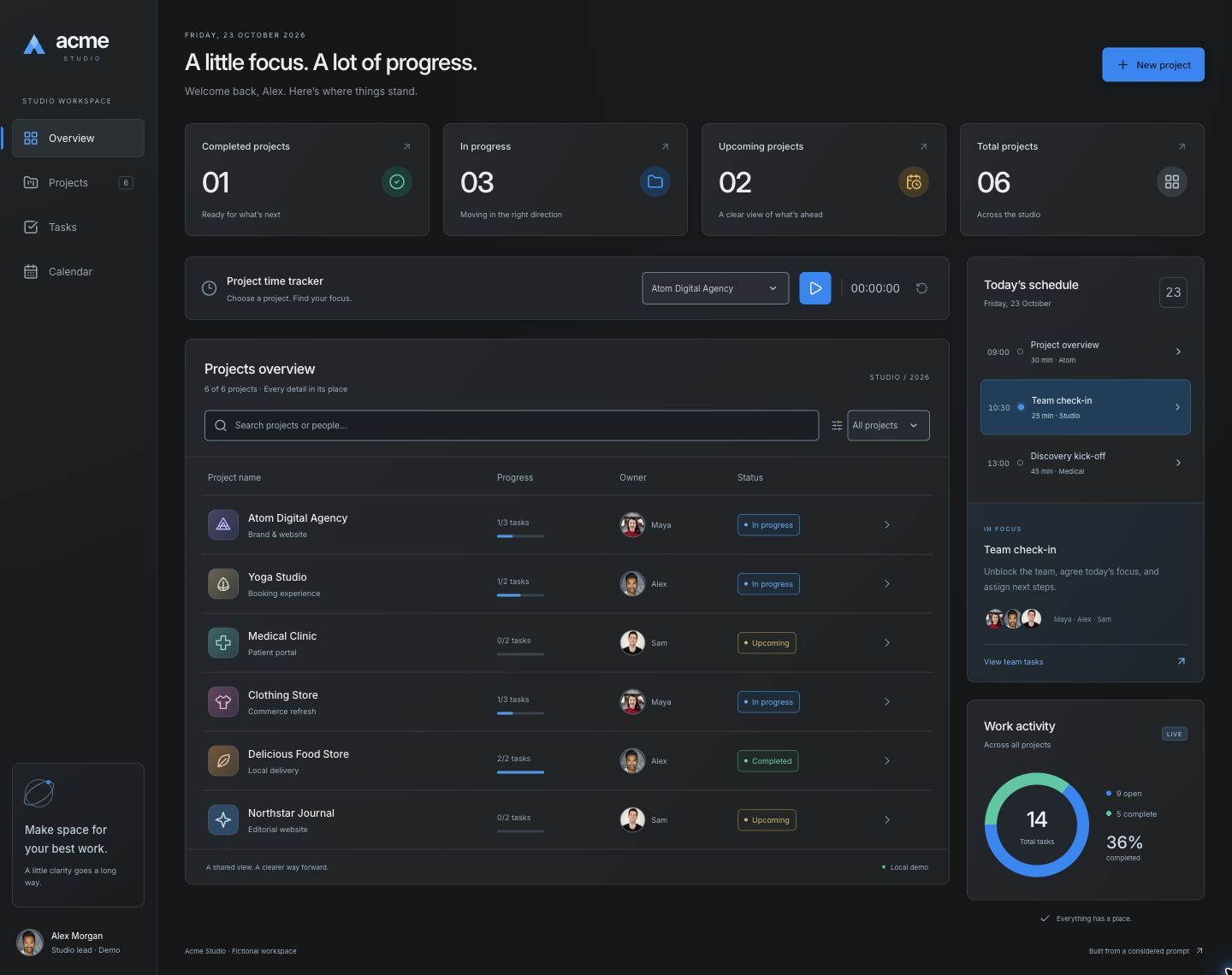
A project overview asks its reader to make several decisions at once: understand the state of the work, find a project, choose a task, and notice what is coming next. In Acme Studio, our aim was to give those decisions a readable order. We kept the working information and made the relationships between it more deliberate.
The starting visual reference was Elinext’s Project Management Platform. Acme’s fictional identity, data model, interactions, and expanded brief are our implementation. The independent before-and-after study in the library is a separate visual proposal; it should not be treated as a screenshot of the working Acme application.
Start with a task you can describe
Our reader is a studio lead who needs to understand project health and keep work moving. That task gives the overview an order: a short summary first, the project list as the main working area, and schedule and activity as supporting context. A timer remains available for focusing on a selected project, without taking over the page.
This order is a design choice to review with real users. A team whose main job is scheduling might need the calendar first. A team handling incidents would probably need urgency and ownership before lifecycle status. A calm screen still needs to reflect the work it supports.
Make the summary agree with the records
The prototype starts with six fictional projects. Its four summary cards show completed, in-progress, upcoming, and total projects. Those values are derived from the underlying records. We avoided adding decorative trend percentages without historical data to support them.
- Keep lifecycle status separate from task completion: finishing one task does not automatically complete a project.
- Use the same project and task records to calculate progress and activity.
- Check what happens to a filtered list when an edit changes whether a record belongs in it.
These details matter during implementation. An attractive percentage loses meaning if it disagrees with the rows beneath it. Clear relationships between data and presentation also make the interface easier to review: a designer can change a record and check the resulting state.
Use spacing to explain relationships
We grouped the overview into distinct regions, gave panels consistent edges, and kept project information in an aligned list. The main column gets more room than supporting schedule and activity panels. Within a row, the project name, progress, owner, and status follow a repeatable arrangement.
Spacing should help someone recognize groups and scan comparable values. It also has a cost: too much spacing can hide useful work below the fold. We adjusted the layout around realistic titles and multiple rows, then used a different stacked arrangement on narrow screens.
Review a flow, not just a screenshot
Try searching for Maya, opening Atom Digital Agency, changing a task, and returning to the list. Then change a project’s status while a status filter is active. These flows reveal questions a static screenshot cannot answer: does progress update, does the current filter survive, and where does keyboard focus return when a row disappears?
The prototype also includes project creation, task editing, view changes, and a focus timer. All project information is fictional and changes remain in memory. It is an interactive example rather than a connected project-management service.
What this example demonstrates
Implementation checks cover parts of the filtering and editing behaviour, with notes available on the prompt detail page. We have not measured a usability improvement, run a user study, or established that another tool will reliably regenerate the same result. “Easier to scan” describes our design intent.
Use the working example to inspect decisions, and the prompt as a starting point for your own constraints. The useful question is whether the order, density, and interactions support the decisions your users actually need to make.
References and credit
Original editorial by UI Prompts, written with AI assistance from documented project work. References are credited separately. These articles do not claim measured usability improvements or consistent regeneration across tools.