Skip to content
uiprompts.design
ExploreHow it worksBlog
Sign inShare a promptShare
uiprompts.design

A shared practice. An open starting point.

ExploreHow it worksBlogShare a promptPrivacySite useContact
©2026 UI PromptsCreated by Ibrahim Olukokun Early preview · Studies & working prototypes
Back to the library

Give every action its place.
ComponentsHierarchyResponsive
By UI Prompts editorial
Give every action its place. — revised design
Before: earlier UI Prompts version · After: current implementation
Open interactive example
The prompt

Real context.
Useful constraints.

A complete brief for this working fictional example.

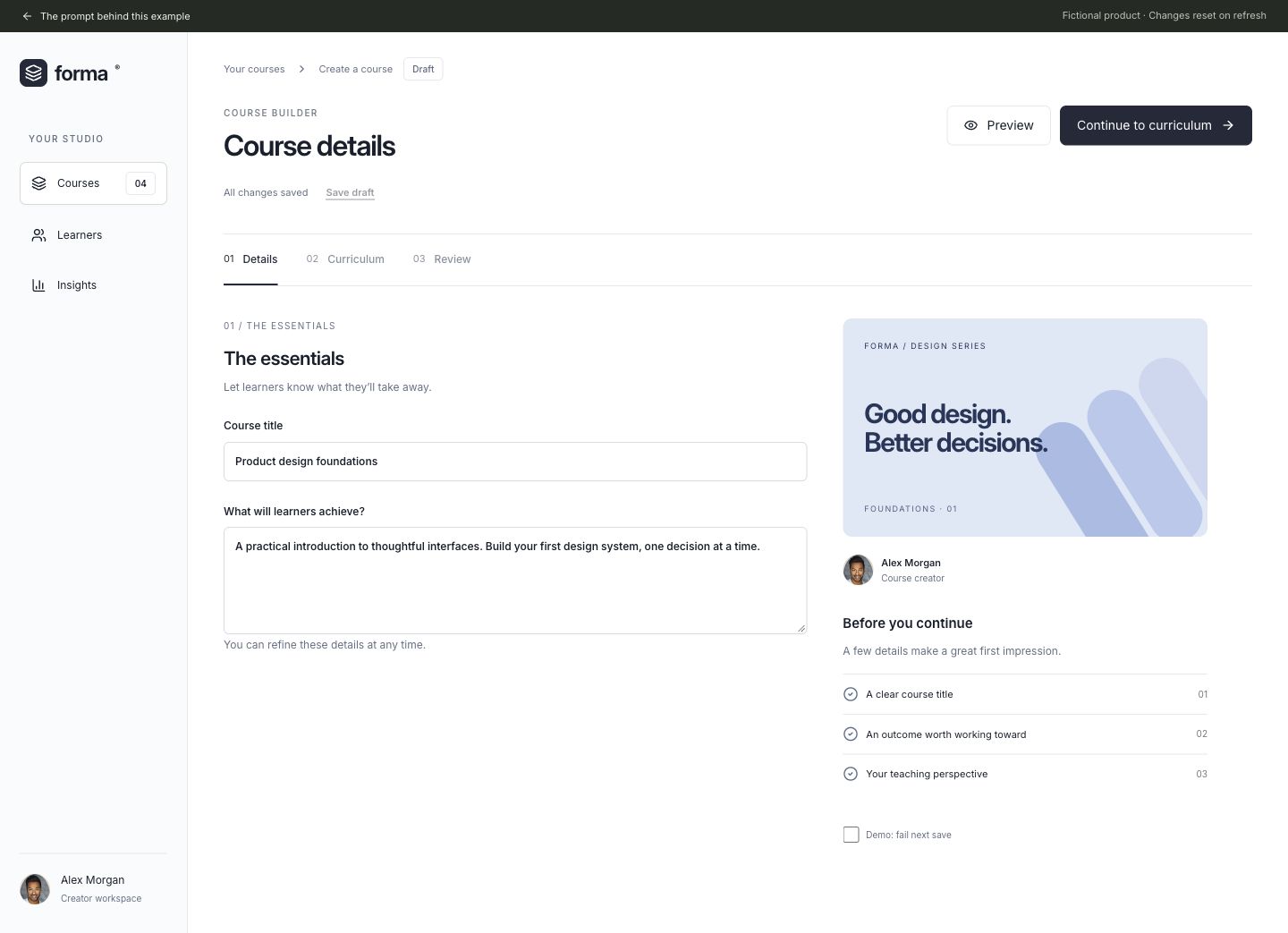
TASK AND PERSON A course creator needs to save changes, preview a lesson and move to curriculum without three competing buttons. DESIGN AND CONTENT Build a course editor for the fictional learning product Forma. Study the credited Smartcat Course Editor reference. Use a true-white canvas, cool grey sidebar, ink #252938 actions, compact breadcrumbs, a Details / Curriculum progress strip and fine dividers. Add an original powder-blue typography-led course cover and a real bundled Joseph Gonzalez portrait for the fictional course creator. Use Inter, compact labels and quiet input borders. Show a realistic course title, overview textarea, course checklist and curriculum summary. Place save state and Save draft beside the title; Preview is an outlined action; Continue to curriculum is the only filled ink action. BEHAVIOR AND STATES Editing the title or description sets an unsaved state. Save draft shows saving then saved. A labelled demo control simulates the next save failing; Retry preserves the edits. Preview opens an accessible dialog showing the current unsaved content. Continue is blocked by an inline explanation while edits are unsaved and changes to a curriculum view after saving. DELIVERY Deliver a working responsive web interface, not a static image. Use local fictional data and in-memory state. No authentication, analytics, remote data requests, payments or persistent storage. Serve any bundled fonts and images locally. Include an obvious return-to-prompt link and clearly identify this as a demonstration. Keep every visible navigation item or action useful; do not add decorative fake controls. ACCESSIBILITY AND RESPONSIVENESS Use semantic headings, labelled inputs and real buttons. Touch controls must be at least 44 px high. Provide visible keyboard focus and announce updates with a status region. Do not rely only on color. Dialogs need a visible title, Escape dismissal, focus containment and focus restoration. At 390 px, preserve the reading order and all actions without horizontal page overflow. Respect reduced motion. ACCEPTANCE On desktop and a 390 px phone, complete the primary task described above, exercise an invalid or empty state, recover without losing unrelated inputs, and restore its initial state using the reset control where provided, or by refreshing. Verify displayed calculations and selected states against the fictional data. Report exactly what was checked; do not claim usability improvements or reliable independent regeneration. ASSETS AND OPTIONAL VISUAL REFERENCES Bundled assets: /images/patterns/assets/portrait-joseph-gonzalez.avif. If building outside this repository, supply those files with the prompt or use suitable licensed replacements. Draw the described product artwork in code. The written requirements define the scope; reference links are optional visual context. TheCookieSpice / Smartcat Design: https://dribbble.com/shots/25107156-Course-Editor Joseph Gonzalez / Unsplash: https://unsplash.com/photos/man-wearing-white-v-neck-shirt-iFgRcqHznqg
Scroll to read. Copy includes the full prompt.
Inputs, credit and review
INPUTS

Use the bundled example assets where specified. Fictional data and source credits accompany the brief.

CREDIT

Original brief and implementation: UI Prompts editorial. Visual references credited alongside the example.

REVIEW

Interactive example. Changes stay in memory and reset on refresh.

01

The job to be done

A course creator needs to save changes, preview a lesson and move to curriculum without three competing buttons.

02

What to explore

  • Keep Save draft beside the save status, Preview outlined, and Continue to curriculum primary.
  • Preview current edits and recover from a simulated save failure without losing them.
  • Block curriculum navigation until changes are saved.
03

Make the brief yours

Forma is a fictional course editor. Use the bundled Joseph Gonzalez portrait and original course-cover artwork. Save and retry affect in-memory demo state only; Preview shows the current title and overview.

Replace the fictional product and content with your own. Preserve the task, states and acceptance checks that matter to your use case.

04

Visual research & credit

Reference studied directly: white editing canvas, compact breadcrumb and step navigation, fine dividers, ink controls and a supporting side panel. Forma retains its own course content and local save flow. View reference by TheCookieSpice / Smartcat Design

Stock portrait used as a fictional member avatar, not a testimonial or endorsement. View reference by Joseph Gonzalez / Unsplash

Original UI Prompts code, fictional branding and editorial brief. Reference designers did not write or endorse this prompt. This is an interpretation of visual patterns, not a reproduction of their product or assets.

A working example, with clear limits. State stays in memory and resets on refresh. No real account, upload, payment or booking is created. Independent prompt regeneration and usability outcomes have not been verified.